How to export data to Apache Iceberg on AWS
Batch-export GridGain 8 data to an Apache Iceberg table in AWS Glue and Amazon S3 with COPY FROM ... INTO, query it in Athena, then import it back.
Prerequisites
- An enabled
gridgain-bulkloadmodule. - An up and running GridGain node.
- A valid AWS account.
- Brief knowledge of the COPY command.
Overview
GridGain offers batch data export/import with the COPY FROM <source> INTO <target> command, which supports a variety of data formats and sources/destinations.
The batch export/import functionality is available only in the GridGain Enterprise and Ultimate editions, starting from version 8.9.
This guide explains how to:
- Export data from GridGain as an Apache Iceberg table to Amazon services - AWS Glue - and store it in Amazon S3.
- Apache Iceberg is an open table format for huge analytic datasets.
- AWS Glue is a fully managed ETL (extract, transform, and load) service.
- Query the exported data using Amazon Athena - an interactive query service that enables analyzing data directly in AWS Glue and Amazon S3 with the standard SQL queries.
- Import data from AWS to GridGain.
Prepare the AWS environment
This guide uses AWS's us-east-1 region for all services.
- Create AWS access keys.
- Create an S3 bucket named
s3://iceberg-warehouse-1/. Accept the default values for all settings. - Create an AWS Glue database named
gridgain_glue_iceberg. - Create an AWS Athena workgroup named
iceberg-workgroup-1, withs3://iceberg-warehouse-1/athena/as the query result location.
Apache Iceberg's GlueCatalog class requires that names match the [a-z0-9_] pattern (lowercase alphanumeric with underscores, names are dot-separated; for example, db_name.table_name). It can be disabled by setting the glue.skip-name-validation property to true. If you skip the database name and table name validations, there is no guarantee that all downstream systems would support the names.
After you have finished with the guide, don't forget to destroy the environment you had created.
Create the table
Create a simple table in GridGain:
CREATE TABLE cities(id int primary key, city varchar, country varchar, population_est int);

INSERT INTO cities(id, city, country, population_est)
VALUES
(1, 'Tokyo', 'Japan', 37468000),
(2, 'Delhi', 'India', 28514000),
(3, 'Shanghai', 'China', 25582000);
Batch-export the table to AWS Glue
The AWS Glue data catalog is a persistent technical metadata store. The data is stored in AWS S3.
Command
Export data from the GridGain table to the AWS cloud using the COPY command:
COPY FROM cities(id, city, country, population_est)
INTO 's3://iceberg-warehouse-1/'
FORMAT ICEBERG
PROPERTIES(
    'table-identifier'='gridgain_glue_iceberg.cities',
    'io-impl'='org.apache.iceberg.aws.s3.S3FileIO',
    'catalog-impl'='org.apache.iceberg.aws.glue.GlueCatalog',
    's3.client-region'='eu-east-1',
    's3.access-key-id'='YOUR_ACCESS_KEY',
    's3.secret-access-key'='YOUR_SECRET_KEY'
);
AWS-specific properties:
- The AWS Client region requires
s3.client-regionto be explicitly passed as an export property. - The AWS Client credentials can be defined as:
- Bulk export properties
s3.access-key-id,s3.secret-access-key, ands3.session-token. - Environment variables
AWS_ACCESS_KEY_ID,AWS_SECRET_ACCESS_KEY, andAWS_SESSION_TOKEN. - Java system properties
aws.accessKeyId,aws.secretKey, andaws.sessionToken.
- Bulk export properties
Examine the export results
When the export is complete:
-
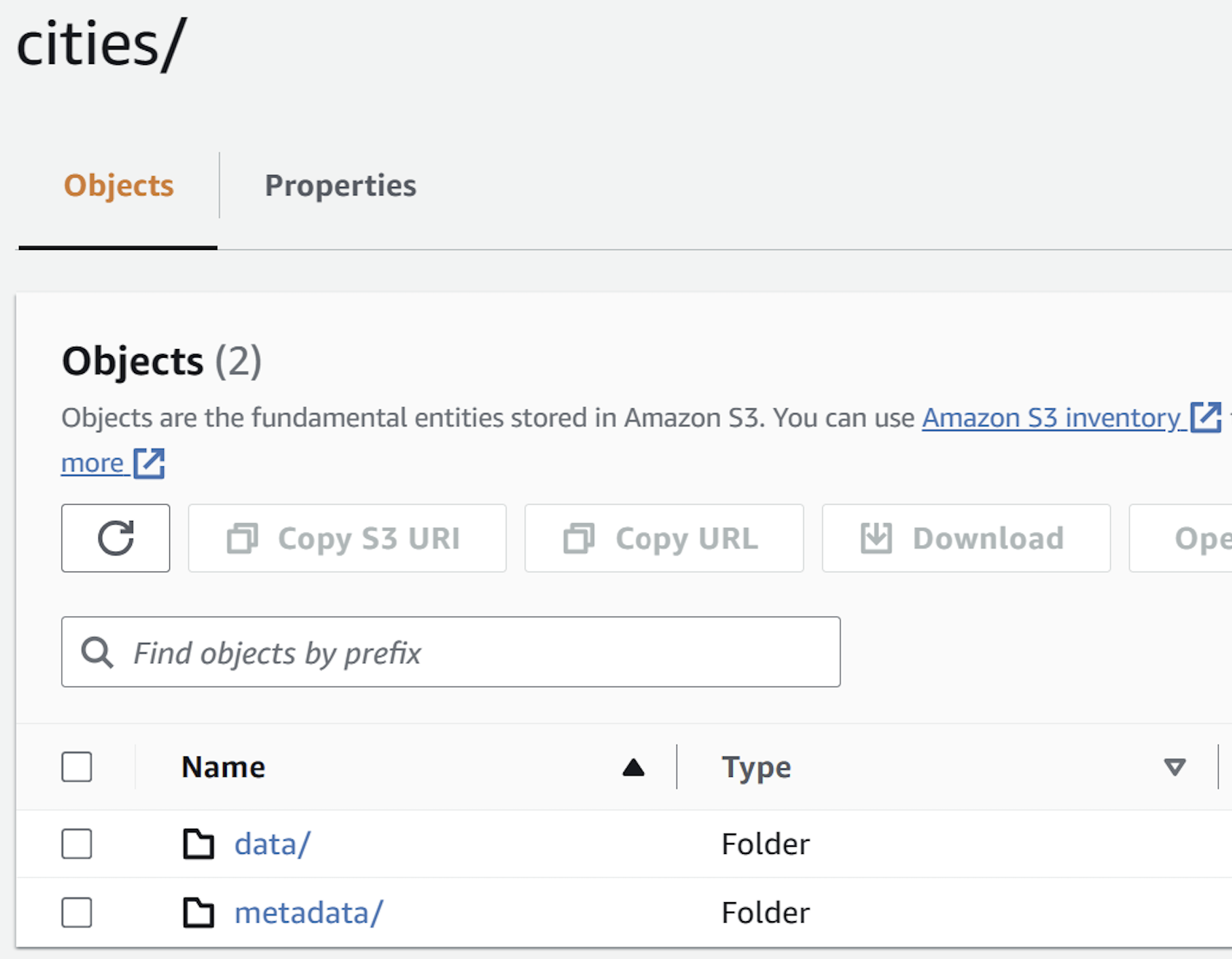
Examine the "destination" S3 bucket:
-
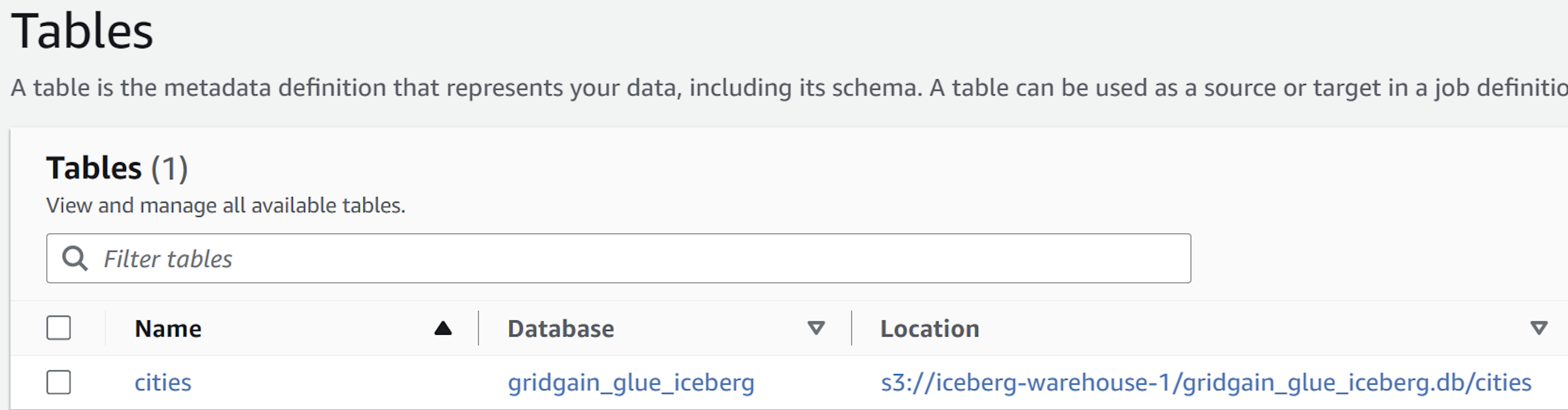
Note that a new AWS Glue table has been created, and it refers to S3:
-
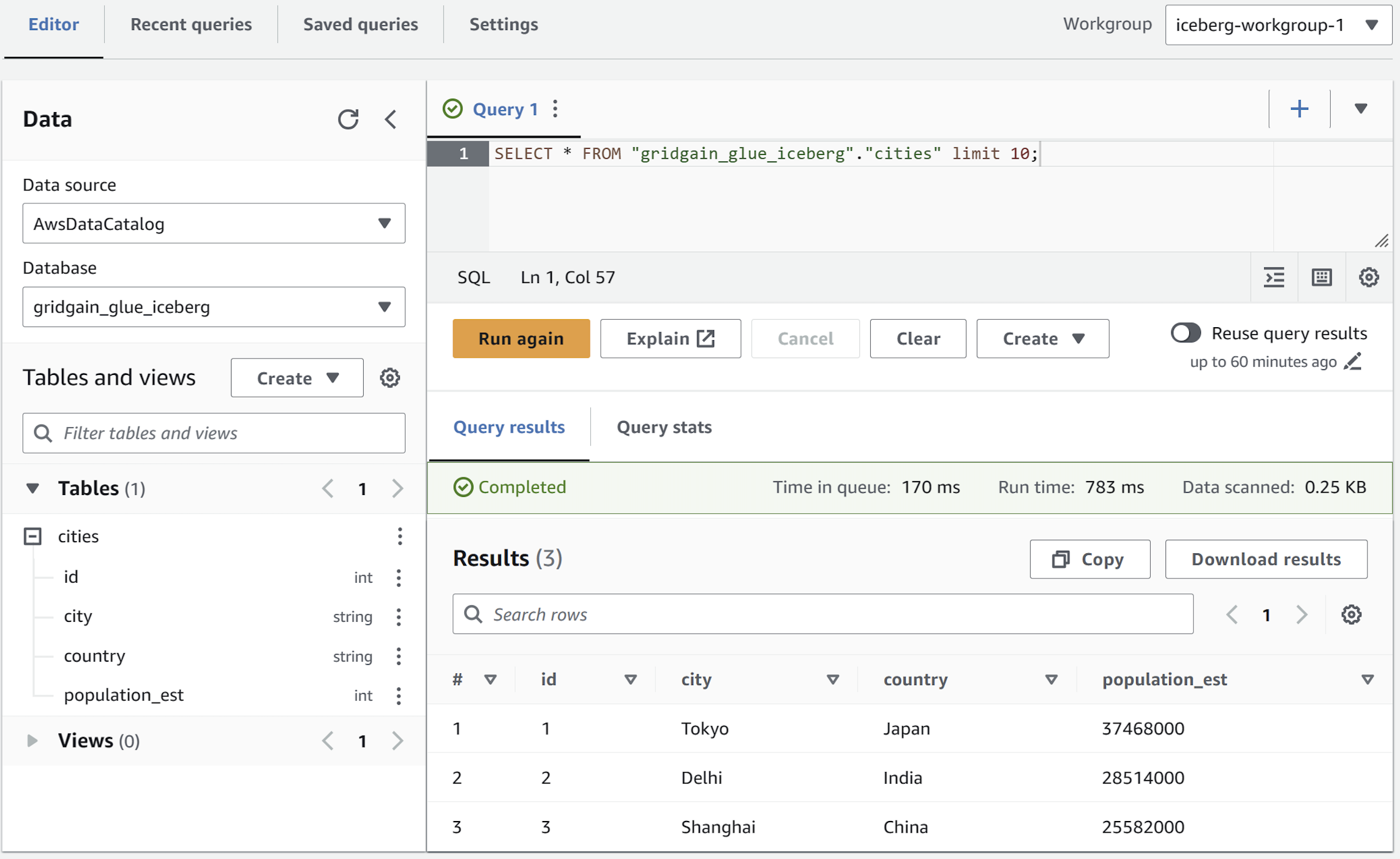
Query the exported data with Amazon Athena (using the previously created workgroup) read more. The query should pick up the new table created in AWS Glue:
Batch-import an Apache Iceberg table to GridGain
To import an Apache Iceberg table from AWS Glue (Amazon S3) to GridGain.
-
Create a "destination" GridGain table (for example, using DDL). For this guide's purposes, you can reuse an existing GridGain table - just clean it up first:
DELETE FROM CITIES; -
Swap
FROMandINTOkeywords in the command you have used to upload the data to the cloud:COPY INTO cities(id, city, country, population_est)FROM 's3://iceberg-warehouse-1/'FORMAT ICEBERGPROPERTIES('table-identifier'='gridgain_glue_iceberg.cities','io-impl'='org.apache.iceberg.aws.s3.S3FileIO','catalog-impl'='org.apache.iceberg.aws.glue.GlueCatalog','s3.client-region'='eu-central-1','s3.access-key-id'='YOUR_ACCESS_KEY','s3.secret-access-key'='YOUR_SECRET_KEY'); -
After the import is complete, verify that new entries have appeared in the destination table:
SELECT * FROM cities;The response should look as follows:
+------+-------------+-------------+--------------+| ID | CITY | COUNTRY |POPULATION_EST|+------+-------------+-------------+--------------+| 1 | Tokyo | Japan | 37468000 || 2 | Delhi | India | 28514000 || 3 | Shanghai | China | 25582000 |+------+-------------+-------------+--------------+
Conclusion
You have successfully completed the guide. You have learned how to bulk-upload Apache Iceberg tables to an AWS Glue catalog (with data residing in Amazon S3) and bulk-download data from AWS Glue / Amazon S3 to GridGain.
Related
- COPY command reference - The GridGain SQL command used for batch export and import.
- Apache Iceberg documentation - The open table format for huge analytic datasets.