How to integrate Control Center with PingOne
Configure PingOne SSO with GridGain 8 Control Center to enforce role-based access control and validate cluster action permissions through OIDC.
Prerequisites
-
A GridGain 8.x Control Center installation. This guide applies to GridGain 8.x clusters.
-
Access to a PingOne organization and environment. This guide assumes one of the following:
- You already have an existing PingOne environment
- You have completed PingOne self-service registration and trial provisioning
If you do not yet have a PingOne environment, complete self-service registration first, then return to this guide.
GridGain 9 uses a different security configuration and is out of scope for this guide.
Overview
Control Center for GridGain 8 clusters lets you use SSO providers for authorization in the system. This means a Control Center administrator can use role-based access control (RBAC) and assign specific privileges to certain users. Cluster action permissions can also be checked when the user is authorized via SSO.
This guide uses the PingOne SSO provider as an example. It walks through configuring PingOne, wiring Control Center to it, validating cluster action permissions from the cluster configuration, and confirming that RBAC and cluster actions work for a user authenticated through PingOne.
PingOne configuration
-
First, sign in to PingOne and pass the email verification.
-
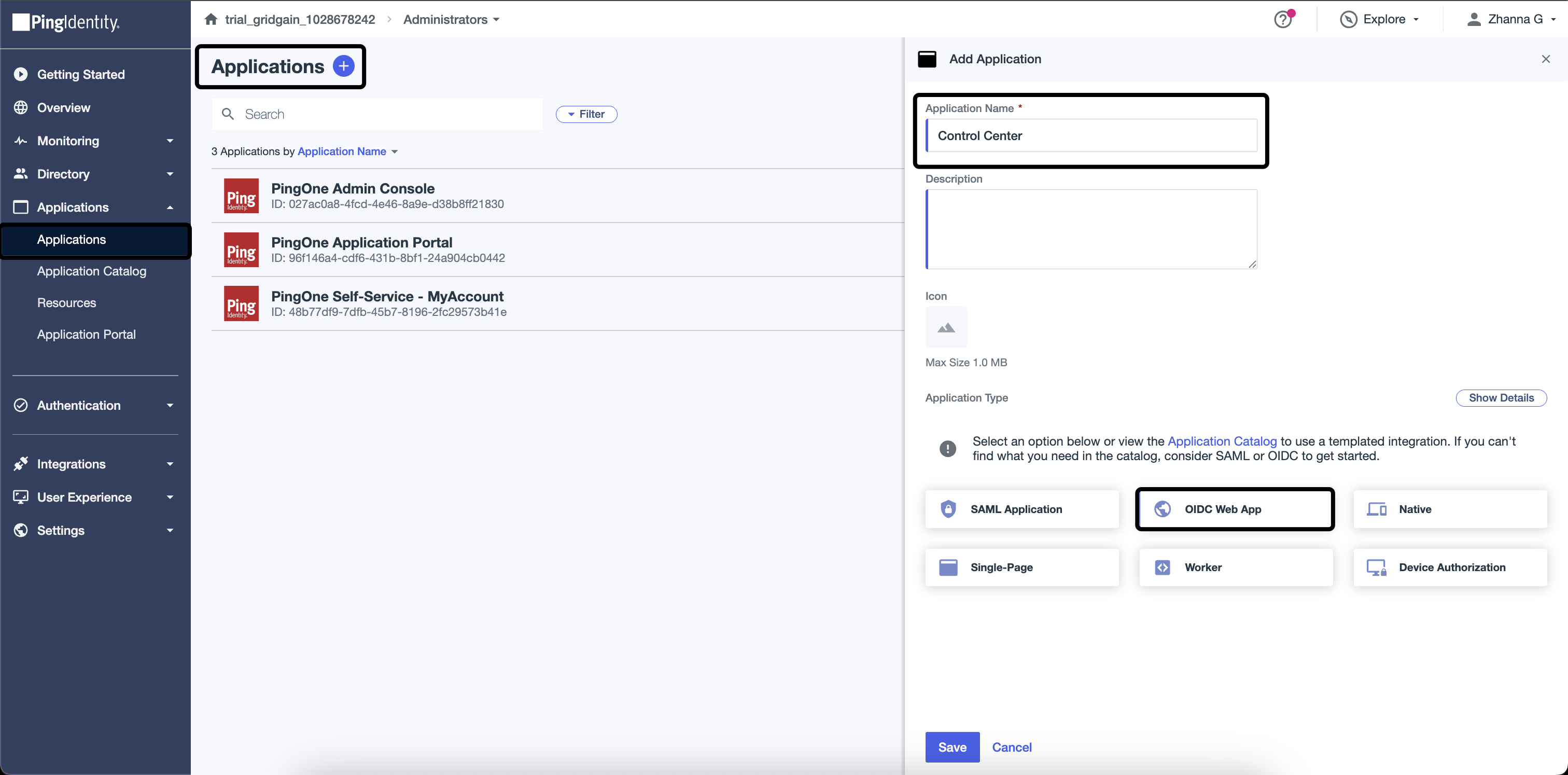
After completing the verification process, proceed to create a new application. Specify the Application name and choose the OIDC Web App option.
-
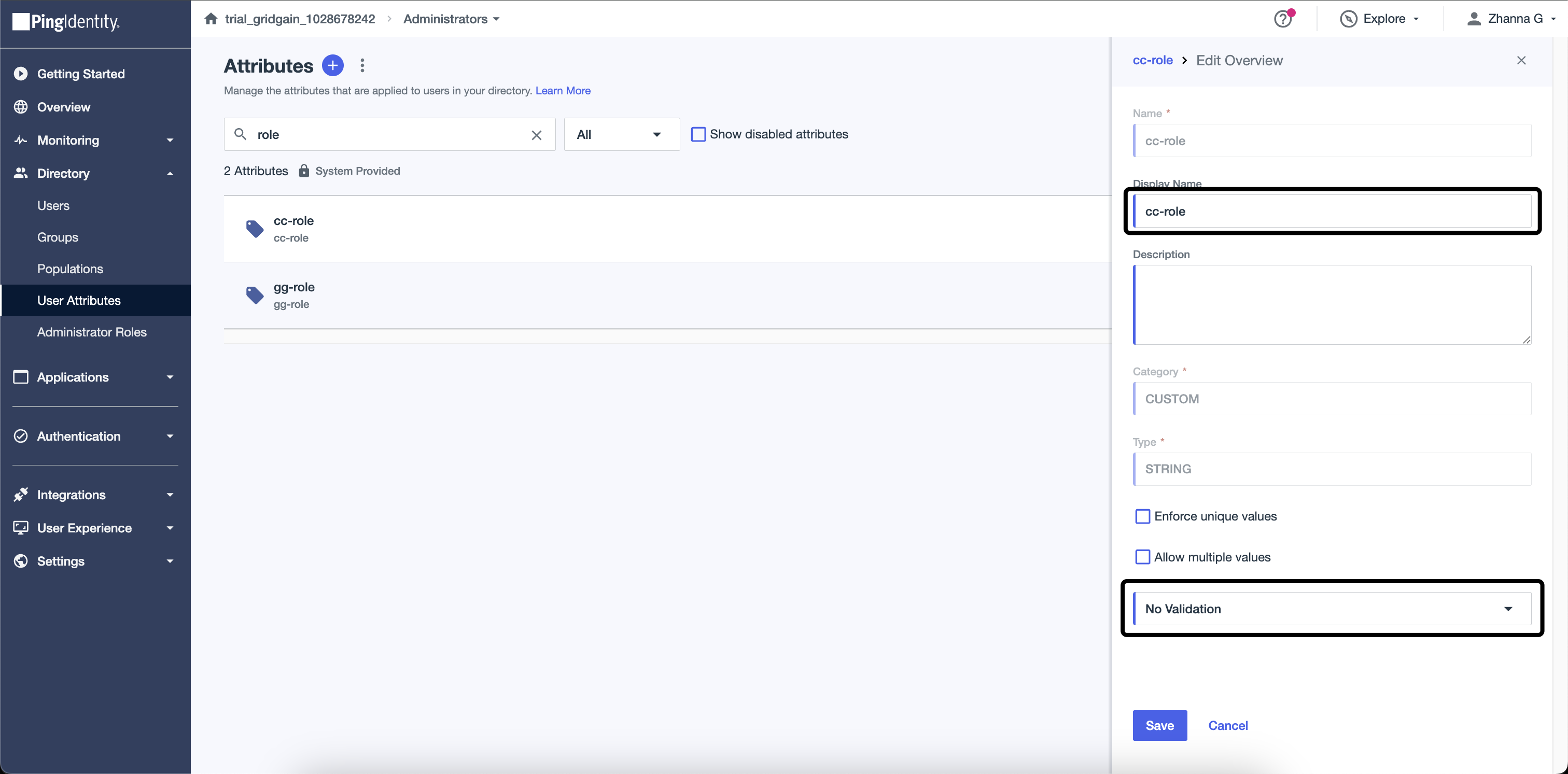
Create two User Attributes:
gg-roleandcc-rolewith the No validation option.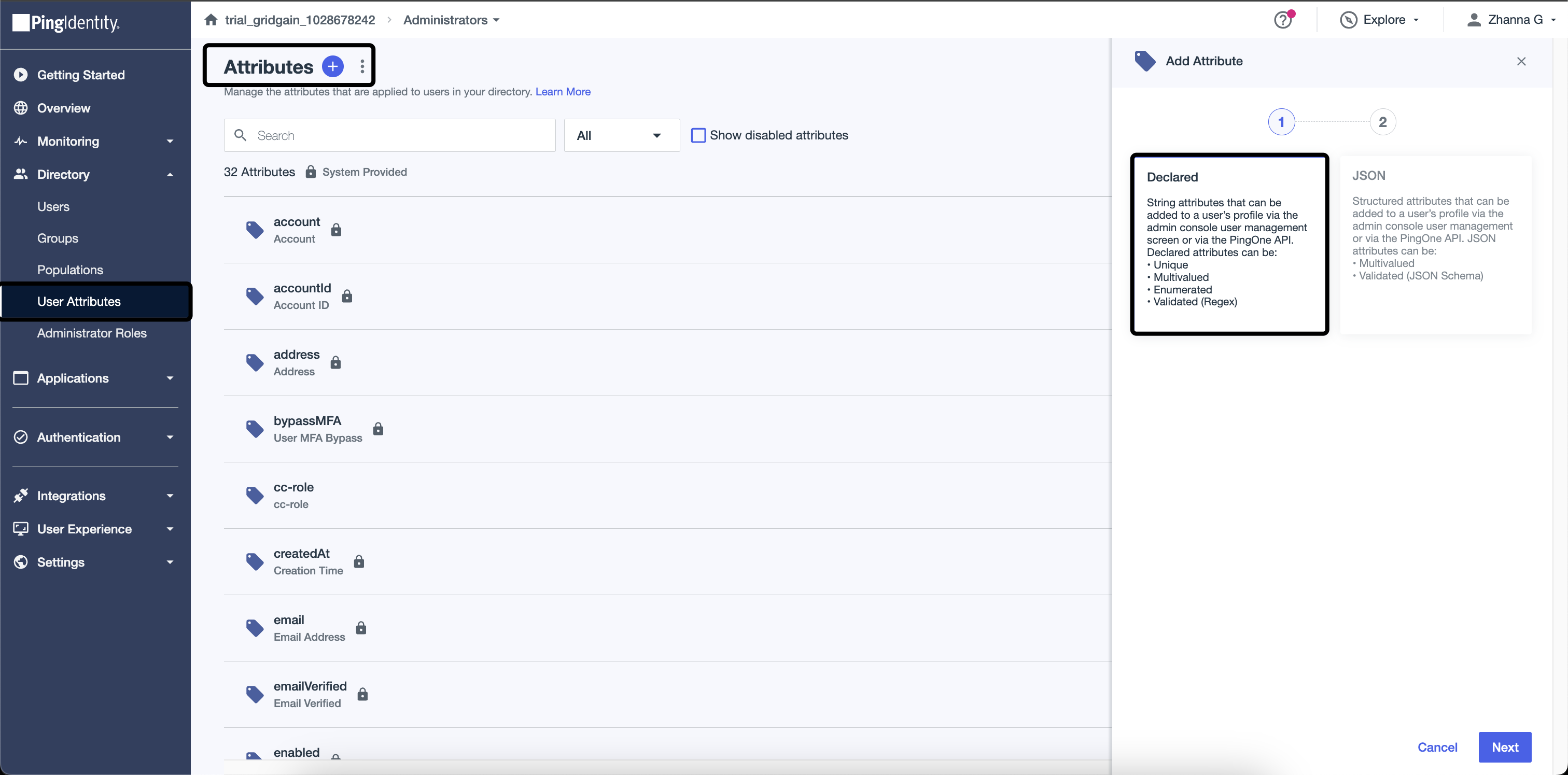
-
Add the
gg-roleandcc-rolemapping in the created application. Find the Attribute Mapping tab in the application and add the mapping in the Custom Attributes section.notecc-roleis used as an example and is not required. You can use any custom claim name, but it must match between PingOne and Control Center configuration.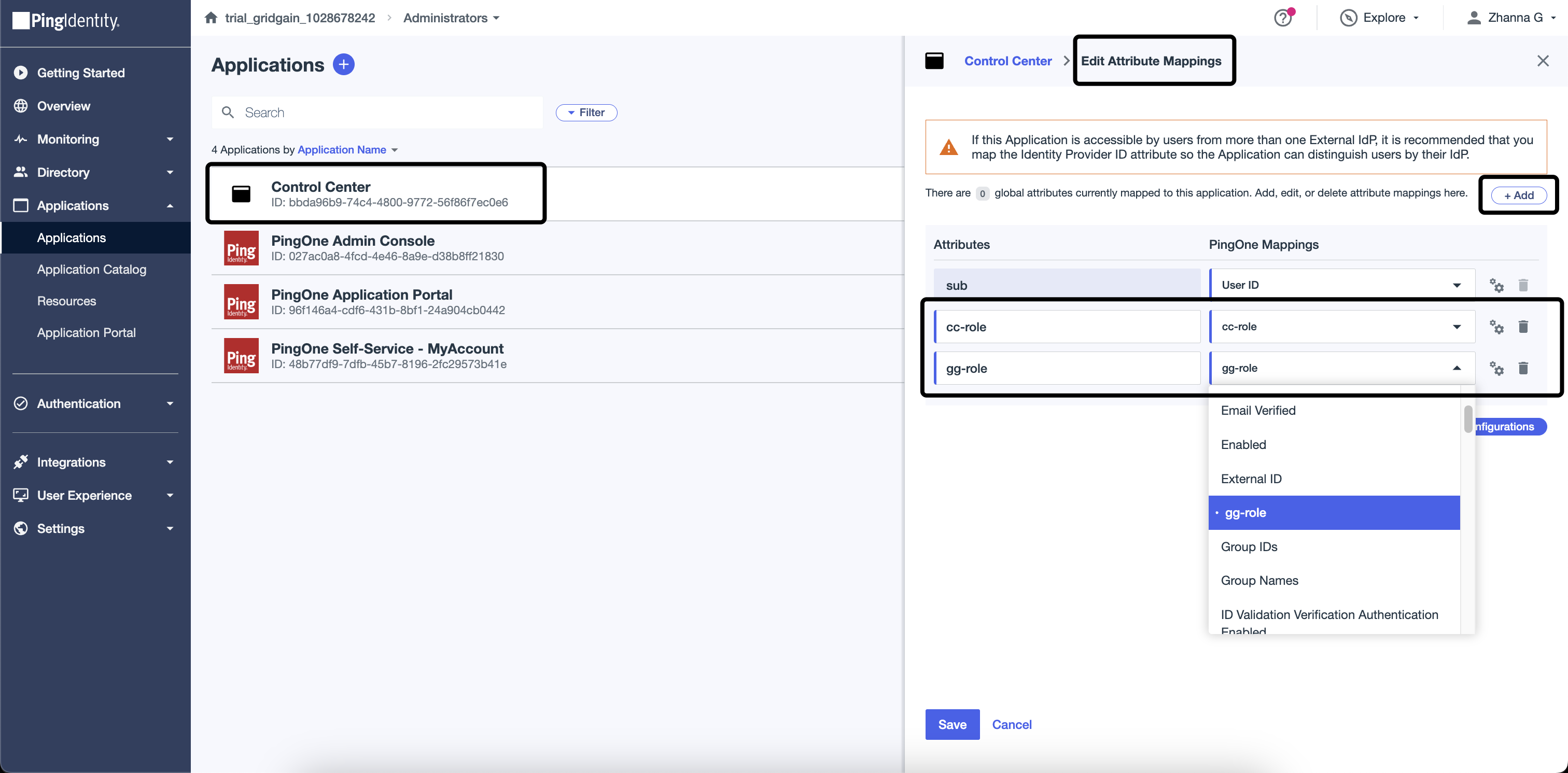
-
Set the Redirect URIs parameter as
http://localhost:3000/api/v1/oauth2/login/pingand activate Refresh Token. These parameters are located on the Configuration tab.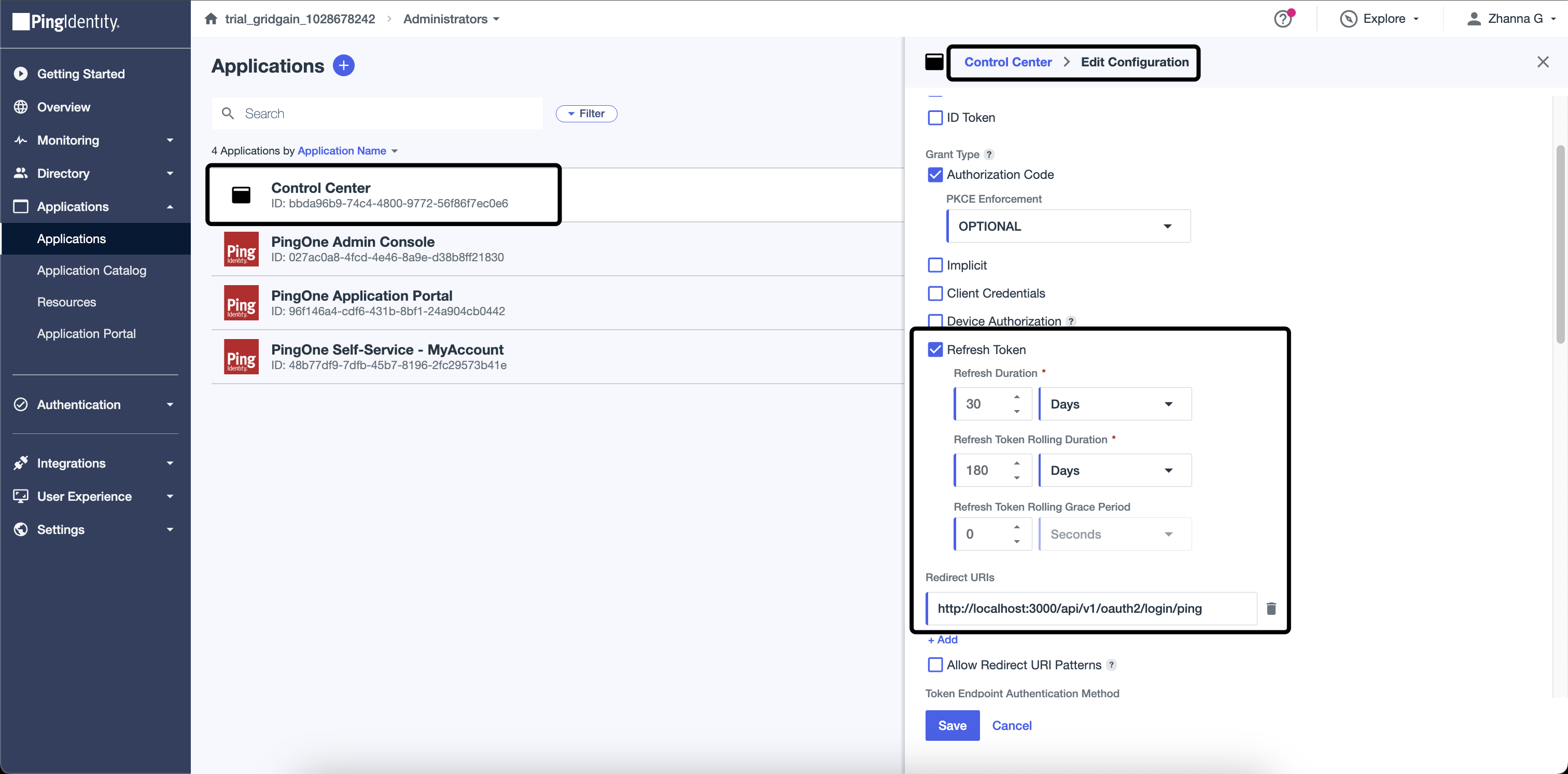
-
Assign
gg-roleandcc-roleto the users. User management is carried out through the Users page.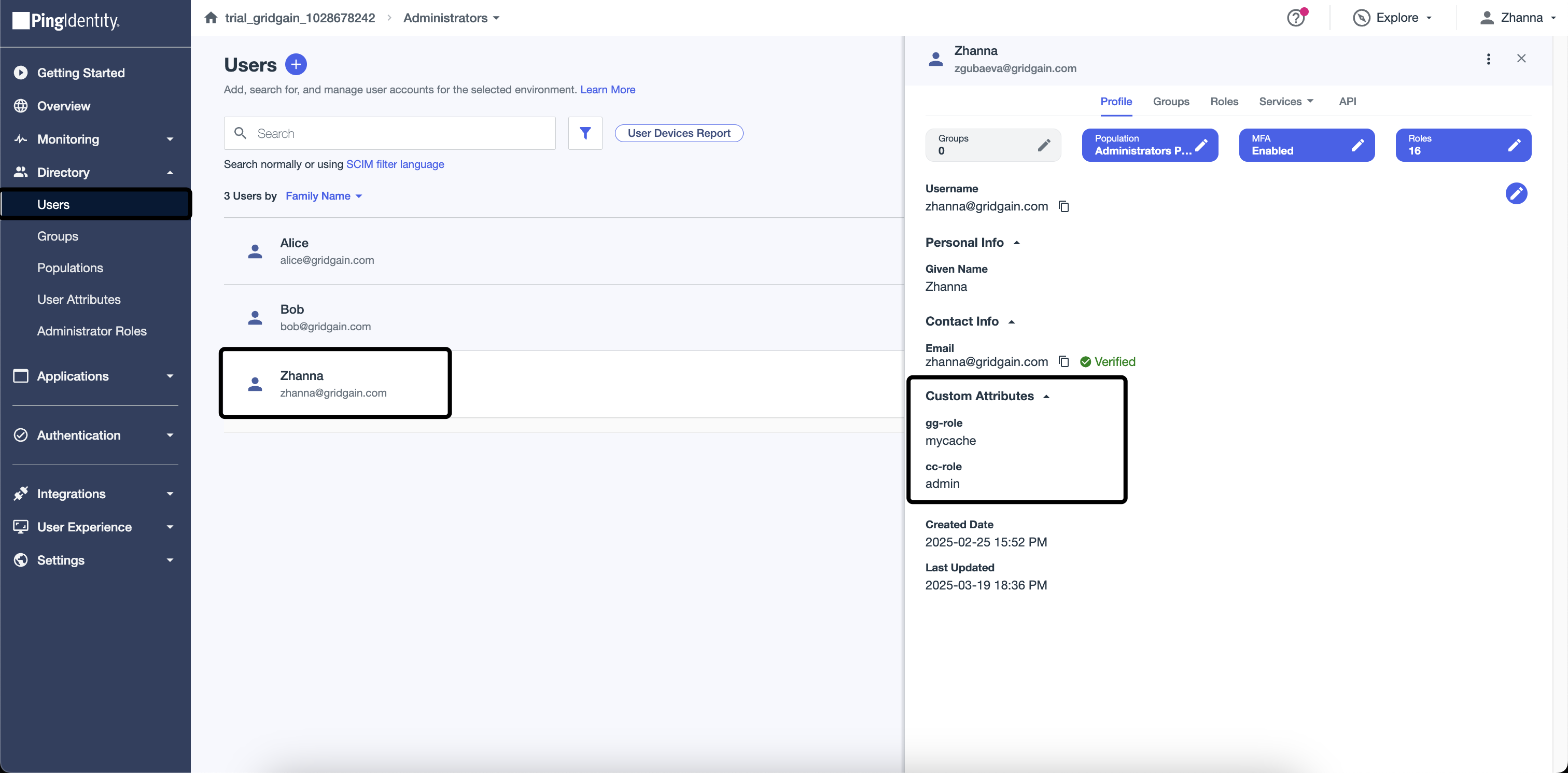
-
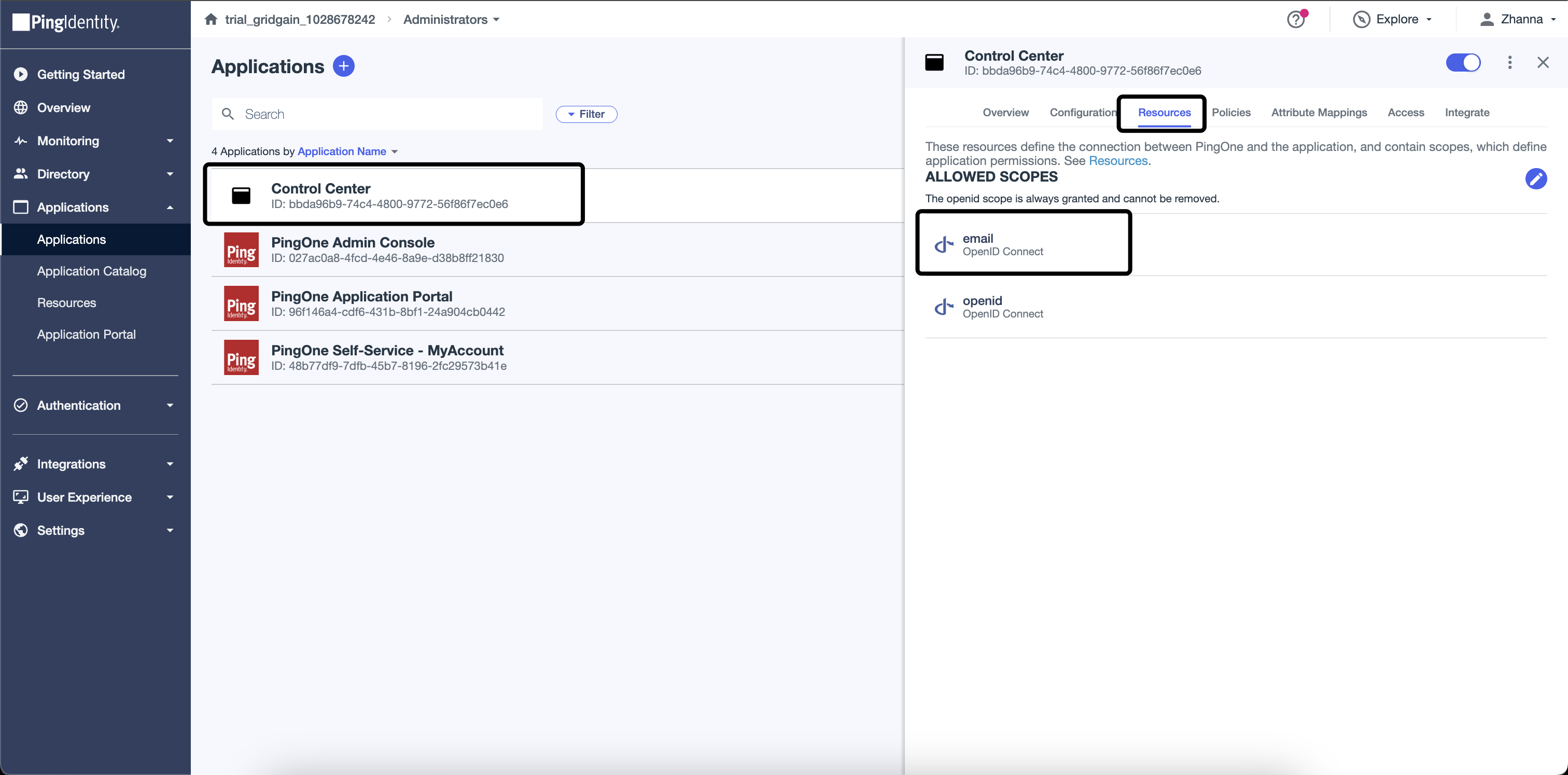
Add email to the allowed scope on the Resources tab.
Control Center configuration
After completing the Ping configuration, set up Control Center via the application.properties file. This file should be located in the Control Center root folder.
The account.oidc.rbac.enabled attribute sets permissions towards Control Center based on a value in the cc-role attribute. The possible values are "admin", "regular", or "no-access".
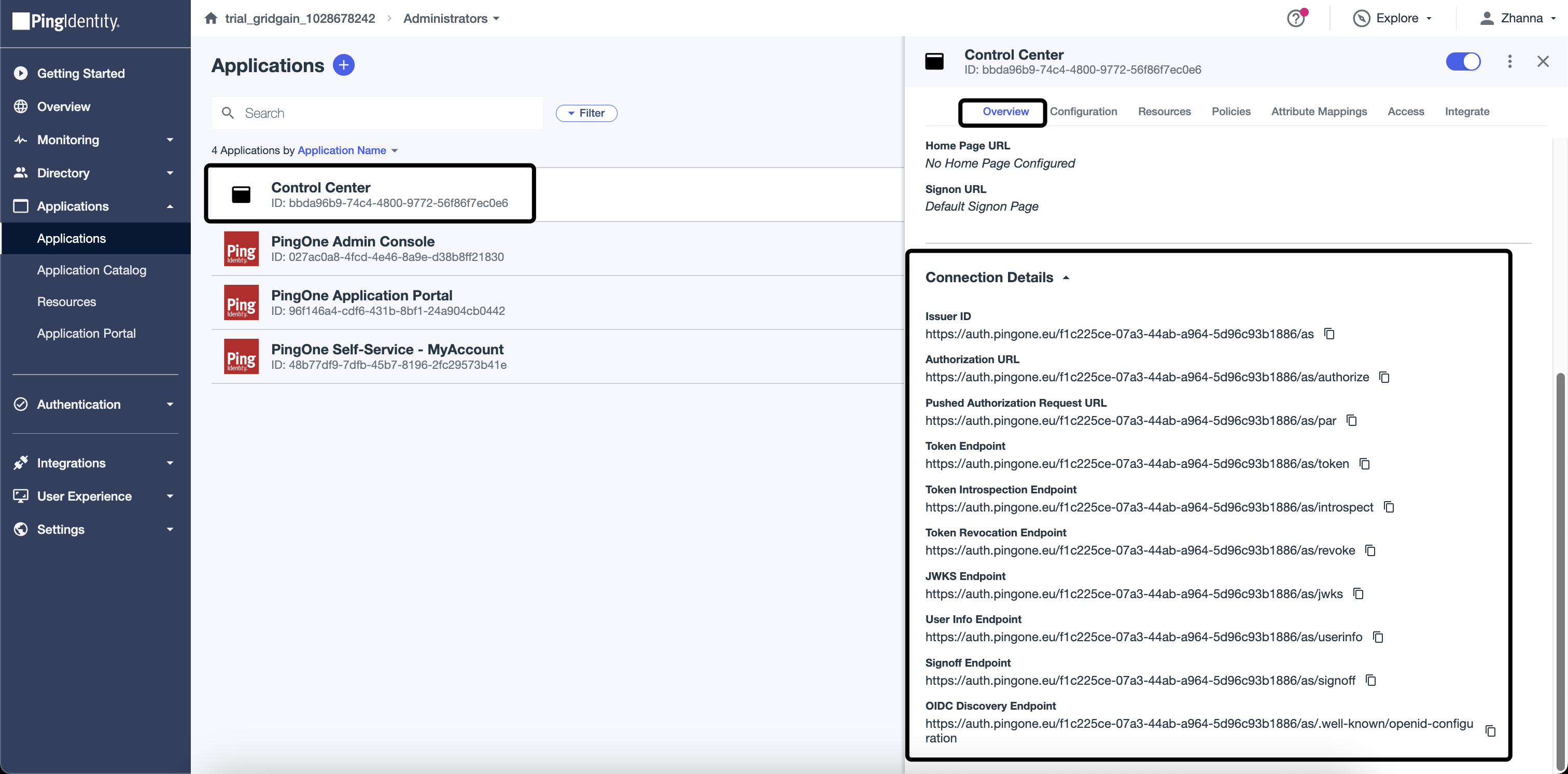
All the values for the spring.security.oauth2.client.xxx parameters are defined on the Overview tab in the application.
account.oidc.rbac.enabled: true
account.oidc.rbac.attributeName: cc-role
spring.security.oauth2.client.registration.ping.client-id: {{client_id}}
spring.security.oauth2.client.registration.ping.client-secret: {{client_secret}}
spring.security.oauth2.client.provider.ping.authorization-uri: https://auth.pingone.eu/{{id}}/as/authorize
spring.security.oauth2.client.provider.ping.token-uri: https://auth.pingone.eu/{{id}}/as/token
spring.security.oauth2.client.provider.ping.jwk-set-uri: https://auth.pingone.eu/{{id}}/as/jwks
spring.security.oauth2.client.provider.ping.user-info-uri: https://auth.pingone.eu/{{id}}/as/userinfo
GridGain 8.9 cluster configuration
Permissions on cluster actions can also be validated via the cluster configuration and the attribute, which is defined as the claimName. In this configuration the attribute value is gg-role.
    <!-- Credentials for the current node. -->
    <bean id="node.cred" class="org.apache.ignite.plugin.security.SecurityCredentials">
        <constructor-arg value="admin"/>
        <constructor-arg value="admin_password"/>
    </bean>

    <!-- Credentials for the current node. -->
    <bean id="cc_login.user.cred" class="org.apache.ignite.plugin.security.SecurityCredentials">
        <constructor-arg value="cc_password"/>
        <constructor-arg value="default"/>
    </bean>

    <bean id="ignite.cfg" class="org.apache.ignite.configuration.IgniteConfiguration">
  <property name="authenticator">
      <bean class="org.gridgain.grid.security.composite.CompositeAuthenticator">
          <property name="authenticators">
              <list>
                  <bean class="org.gridgain.grid.security.passcode.PasscodeAuthenticator">
    <!-- Set acl provider. -->
    <property name="aclProvider">
        <bean class="org.gridgain.grid.security.passcode.AuthenticationAclBasicProvider">
            <constructor-arg>
                <map>
                    <entry key-ref="node.cred" value="{defaultAllow:true}"/>
                    <entry key-ref="cc_login.user.cred" value="{defaultAllow:true, {cache:'allow_cache', permissions:[CACHE_READ, CACHE_PUT, CACHE_REMOVE]},{cache:'deny_cache', permissions:[]}}"/>
                </map>
            </constructor-arg>
        </bean>
    </property>
                  </bean>
                  <!-- Set OpenID provider. -->
                  <bean class="org.gridgain.grid.security.oidc.OpenIdAuthenticator">
    <property name="userInfoUrl" value="https://auth.pingone.eu/{{id}}/as/userinfo"/>
    <property name="claimName" value="gg-role"/> <!-- The "value" may be a custom one, but the same name should be defined as a Custom Attribute in your Ping Application. -->
    <property name="permissionsJson">
        <map>
            <entry key="default" value="{defaultAllow:true}"/>
            <entry key="mycache" value="{defaultAllow:false, {cache:'MYCACHE*',permissions:['CACHE_READ','CACHE_DESTROY']}}"/>
        </map>
    </property>
                  </bean>
              </list>
          </property>
      </bean>
  </property>

  <property name="securityCredentialsProvider">
      <bean class="org.apache.ignite.plugin.security.SecurityCredentialsBasicProvider">
          <constructor-arg ref="node.cred"/>
      </bean>
  </property>
Work with Control Center
With everything set up, it is time to check how RBAC and cluster actions work for a user who was authenticated via PingOne.
-
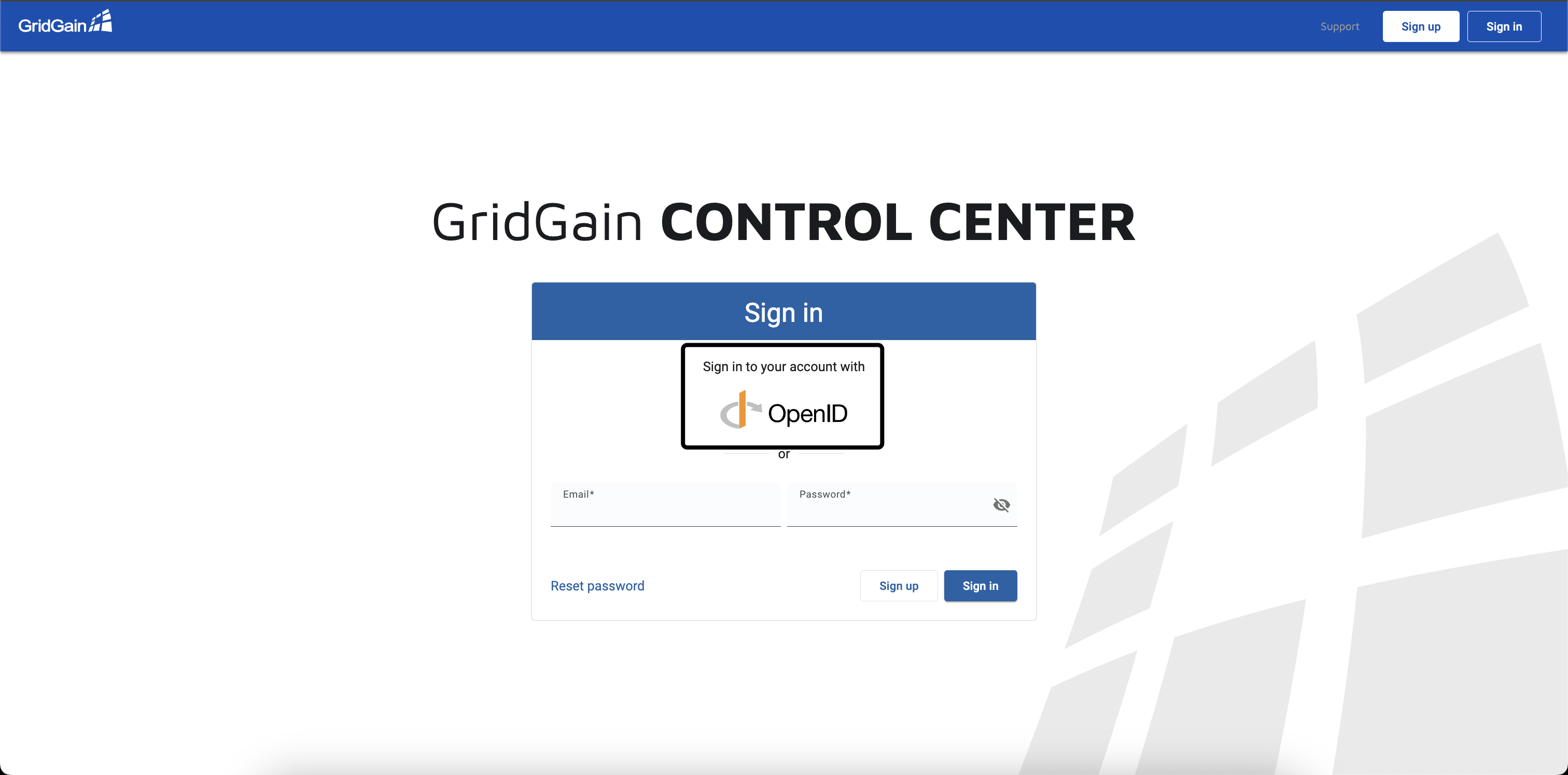
Go to Control Center and select PingOne as a way of authentication.
If the user has
cc-role=admin, then the Administration tab is visible.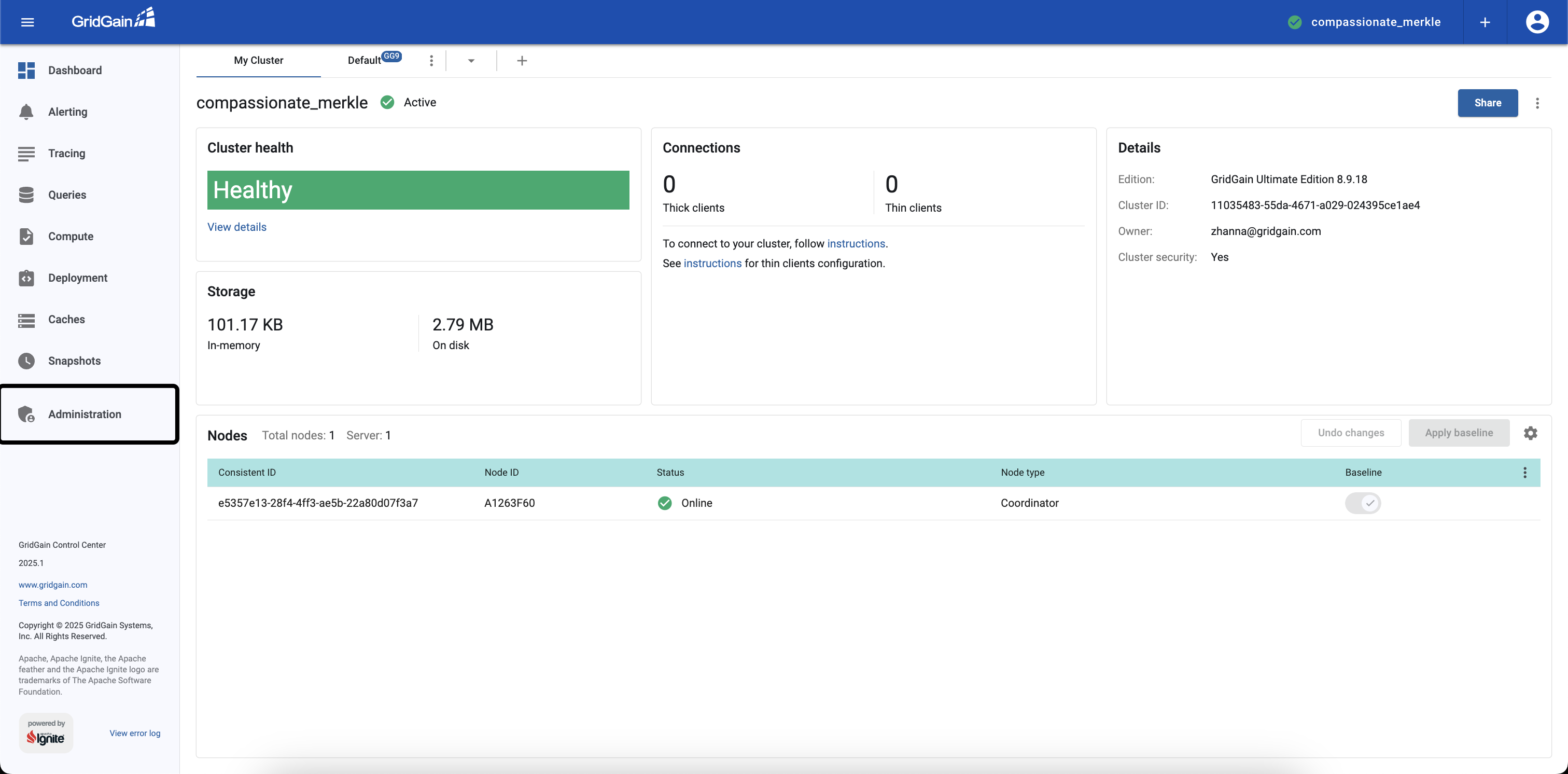
-
Attach a GridGain cluster with the
CompositeAuthenticatorin its configuration. -
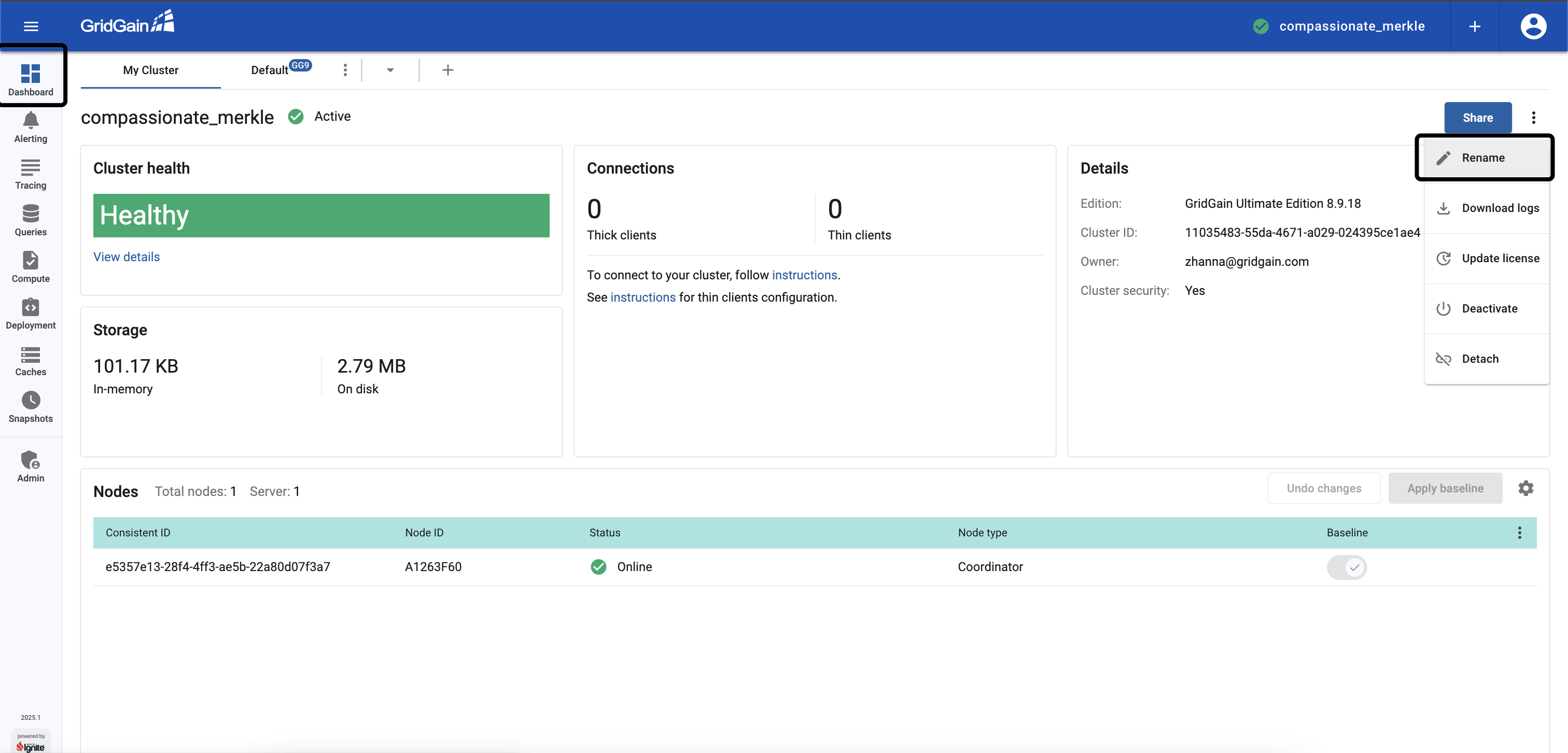
Try to Rename the attached cluster.
-
Select the Authenticate via ping option and click Sign In. The cluster will check the user's permissions.
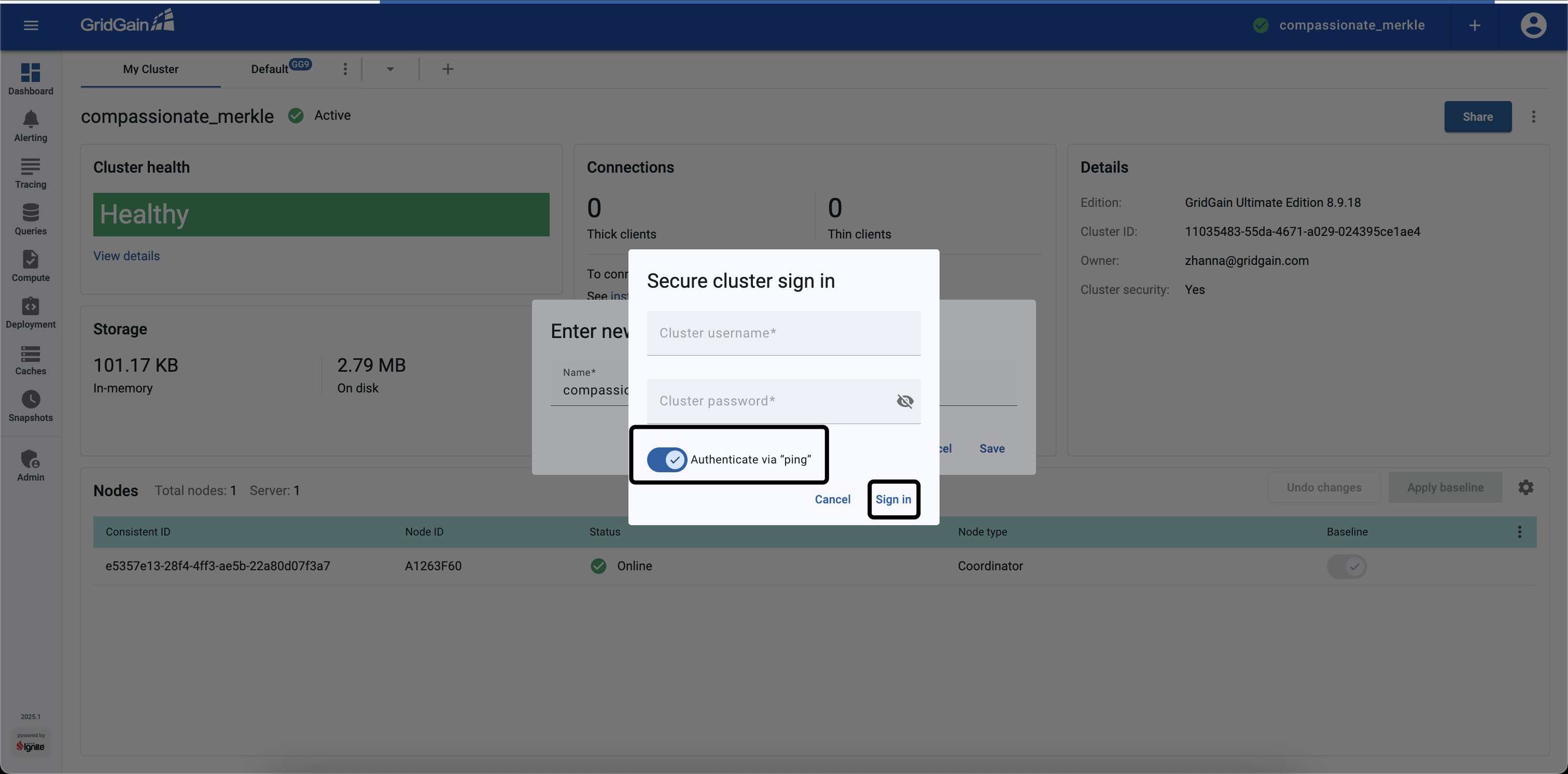
If the user has the previously configured
gg-role=mycacherole, the action is prohibited and an error message is shown, as the role does not allow renaming clusters.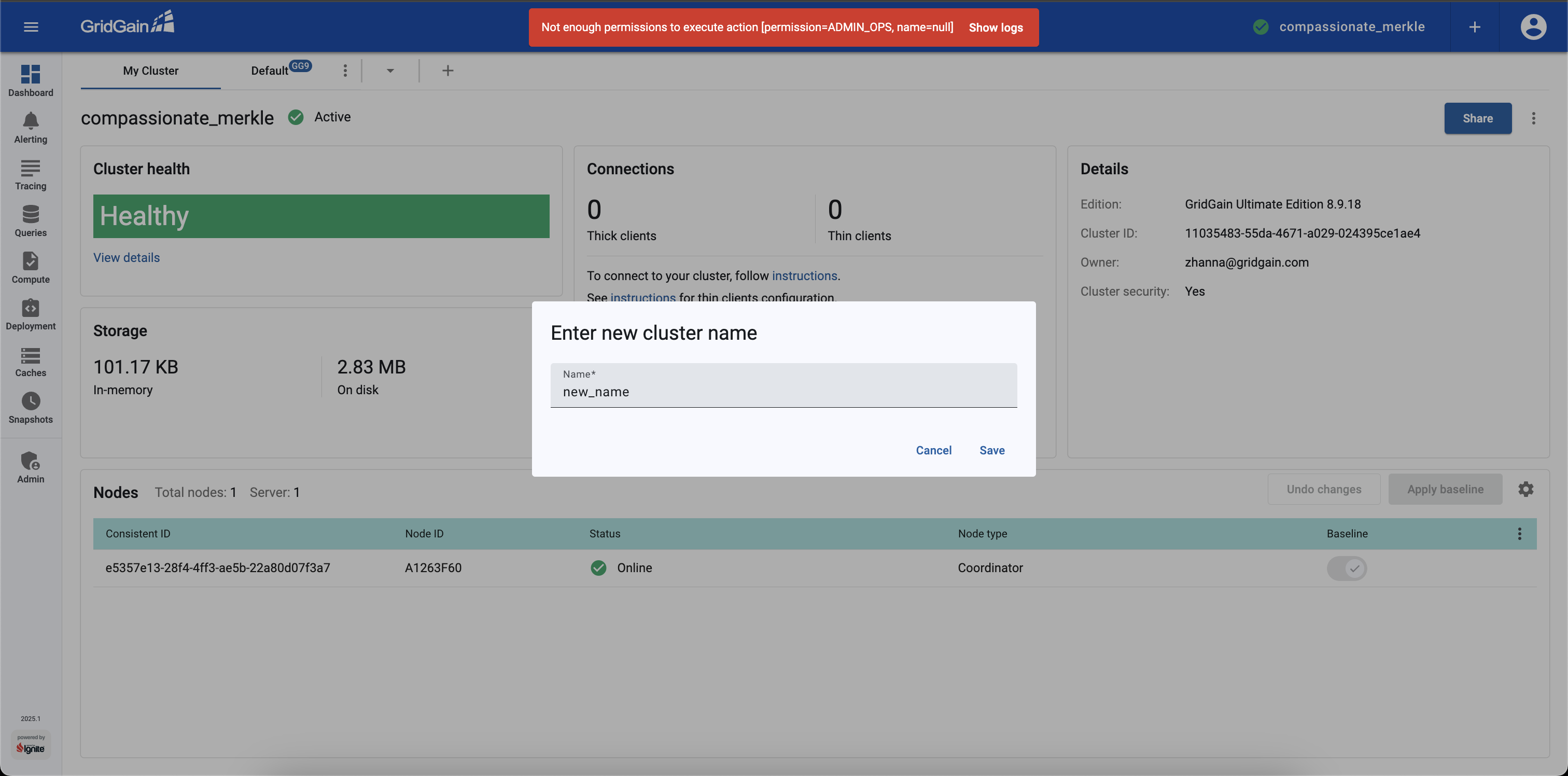
Related
- Control Center configuration - Configure Control Center via the
application.propertiesfile. - Authorization and permissions - GridGain 8 cluster action permissions reference.